
Web Accessibility (A11y): make your interface inclusive for everyone
Learn how to apply simple and effective accessibility techniques to create more human, inclusive, and easy-to-navigate interfaces. Essential practices to improve SEO, usability, overall user experience, and expand your content reach.
Why Accessibility Matters
Accessibility is like opening the door of your interface to everyone. Just as a ramp does not benefit only wheelchair users, an accessible website helps every type of user — whether someone with a disability, someone using a phone under bright sunlight, or even someone with a slow internet connection. When each element can be understood and used effortlessly, the overall experience improves dramatically.
Creating accessible interfaces means thinking about readability, navigation, contrast, structure, and clarity from the very beginning. This prevents frustration, expands your audience, and makes the site more welcoming, intuitive, and easy to use across different contexts and devices.
Beyond promoting inclusion, accessibility directly impacts SEO and quality metrics: search engines better interpret well-structured pages, users stay longer when they can interact with content easily, and smooth navigation even boosts monetization results. An accessible site removes barriers, decreases abandonment, and increases conversions.
In the end, accessibility is not just a technical requirement — it is a form of respect for the user and a competitive advantage that turns the digital experience into something truly universal.
Keyboard Navigation
Keyboard navigation is one of the most essential pillars of accessibility. Many users with reduced mobility, motor difficulties, or even advanced professionals who prefer speed rely entirely on the Tab key to move through links, buttons, forms, and other interactive elements. If a website does not respect this flow, it quickly becomes unusable for part of its audience.
It’s crucial to ensure that every element is reachable, predictable, and clearly highlighted. A logical and visible focus not only helps users who depend on it but also improves the overall experience — especially on small screens, when using an external keyboard, assistive technology, or navigating in environments with low responsiveness.
- Ensure a logical focus order.
The focus should follow the natural reading flow of the page, respecting headings, sections, and interactive elements in expected sequence. Random focus jumps confuse users and interrupt navigation. - Always use
<button>for buttons — never<div>.
Non-semantic elements do not receive focus correctly and hinder keyboard use and assistive technologies. - Links must always include
href.
Without it, the link does not enter the natural navigation flow and does not behave like a real link, harming screen reader usability and SEO. - Avoid hiding focusable elements with CSS.
If something remains in the focus flow while invisible to the user, navigation breaks. Always remove interactive elements from focus when they are hidden. - Create visible focus styles.
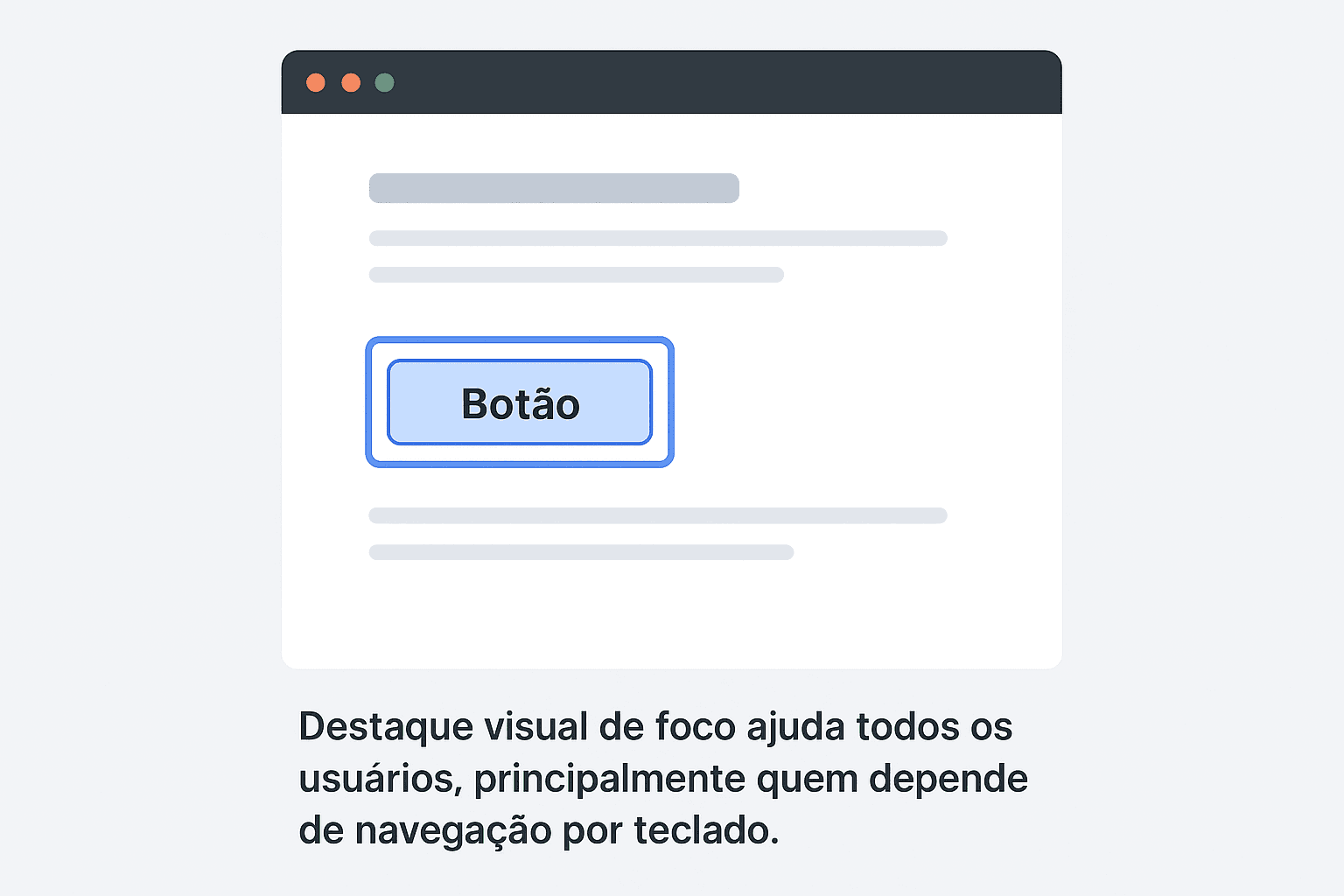
The focus indicator should never be removed. Clear highlights prevent loss of context and help every type of user. - Avoid unnecessary manual tabindex values.
The natural order is almost always the most accessible. Values greater than 0 disrupt focus flow and create unpredictable navigation.
When keyboard navigation works properly, the site becomes more inclusive, more professional, and much easier to use in different environments. A solid focus flow is a sign of quality — and search engines also detect this through engagement metrics.
If you're building your workspace and want a keyboard that truly enhances your experience — whether for coding, studying, or creating — there's a model that delivers comfort, precision, and long-lasting durability. It's the perfect choice for anyone who spends hours at the computer and wants to avoid strain, boost productivity, and upgrade the overall look of the desk.See keyboard details.
Colors, Contrast and Readability
Proper color choices and adequate contrast directly influence anyone’s ability to understand and interact with an interface. Around 8% of men have some level of color blindness, and in bright-light environments or low-brightness screens, even users without visual impairments face difficulties. Ensuring good readability is not just about aesthetics — it’s functionality, accessibility, and real usability.
When contrast is weak, users must put extra effort into reading and distinguishing elements, which increases eye strain and the chances of errors or page abandonment. On the other hand, a good use of colors brings comfort, clarity, and a natural flow, improving engagement metrics and even SEO, as search engines can better interpret well-structured interfaces.
- Maintain a minimum contrast ratio of 4.5:1 between text and background.
This is the WCAG-recommended standard for normal text. For large text, the minimum is 3:1. Tools like Contrast Checker and the Axe extension help test combinations. - Avoid using color alone to convey information.
People with color blindness may not distinguish green from red, for example. Use additional cues such as icons, patterns, helper text, or distinct shapes. - Ensure a strong visual hierarchy using size, weight, and spacing.
Hierarchy guides the user’s eye, reduces uncertainty, and makes navigation easier. Headings, subtitles, cards, and buttons should have clear and consistent proportions. - Be careful with text over images.
Always use overlays, subtle shadows, or semi-opaque boxes to keep reading comfortable even on complex backgrounds. - Use colors with purpose, not only for aesthetics.
Colors communicate emotions, direct attention, and help create efficient visual paths. A well-planned palette avoids visual noise and improves the overall experience.
Tip: test your design in both light and dark mode — contrast differences become even more evident in these scenarios.
Correct Use of ARIA
The ARIA specification exists to fill gaps in HTML — not to replace it. Many beginner developers try to solve accessibility issues by adding role everywhere, but this often creates more confusion than solutions. The core rule is simple: if HTML already offers a native element that does the job, it will always be more accessible than any manually recreated alternative.
ARIA should be used with intention, especially in interactive components that do not have direct HTML equivalents, such as complex menus, tabs, carousels, and dynamically updated lists. When applied correctly, it helps assistive technologies — like screen readers — understand states, hierarchies, and relationships between elements, ensuring navigation that is clear, predictable, and free of surprises.
- Prefer semantic HTML elements whenever possible.
Tags like<button>,<nav>,<header>,<main>, and<ul>carry built-in meaning for screen readers. This reduces the need for ARIA and avoids unnecessary redundancy. - Avoid unnecessary roles:
role="button"is rarely needed.
If something should behave like a button, use a real<button>. Creating a button with<div>or<span>forces you to manually implement accessibility (keyboard focus, Enter/Space events, ARIA states…), increasing the likelihood of mistakes. - Use attributes like
aria-expanded,aria-controlsandaria-hiddenfor collapsible components.
These attributes inform screen readers whether a section is open, closed, or hidden. They are essential in accordions, dropdowns, mobile menus, and tooltips. - Ensure ARIA stays in sync with the visual state.
If something looks open visually butaria-expandedremains set tofalse, the auditory experience becomes inconsistent, causing confusion and inaccurate navigation. - Avoid adding ARIA excessively.
The official recommendation is: "Do not use ARIA if you are not sure why you need it." Misused ARIA can make an interface less accessible than using nothing at all.
Tip: always check the "ARIA Authoring Practices" — it provides ready-made behavior guidelines for many component types.
Testing & Continuous Auditing
Accessibility is not something you do only once — it's a continuous process. Tools like Lighthouse, Axe DevTools, and WAVE help quickly identify common issues such as low contrast, missing labels, incorrect hierarchy, or inconsistent navigation. These automated audits don't replace human testing, but they are excellent for maintaining a minimum quality standard throughout development.
Beyond automated tools, real-world testing is essential: navigating with the keyboard using only Tab, Shift + Tab, Enter, and Space, simulating screen readers, checking behavior in light and dark themes, and ensuring dynamic elements correctly communicate their states. Small inconsistencies that go unnoticed visually can deeply affect users who rely on assistive technologies.
Another important practice is integrating accessibility checks into the CI/CD workflow. Linters, automated validation, and accessibility coverage help prevent regressions and ensure that new features do not introduce issues. Teams that adopt continuous auditing drastically reduce rework and increase interface reliability.
- Validate headings, structure, and semantics on every deploy.
- Test focus behavior, tab order, and interactive states.
- Document recurring issues to prevent them from happening again.
- Always review colors and contrast when updating global styles.
Tip: maintain an accessibility checklist as part of your code review process. It helps reinforce good practices and standardize quality across the team.